XLR8 AI Video
Turn your AI-optimized content into explainer videos

Four ways to turn written content into video

Scripts from content you already have
Pull any blog post, listicle or guide you generated in XLR8 AI straight in as the script, or write your own. Edit it to fit the video format so you control exactly what gets spoken, with no copy-pasting between tabs.
Voice, language and speed
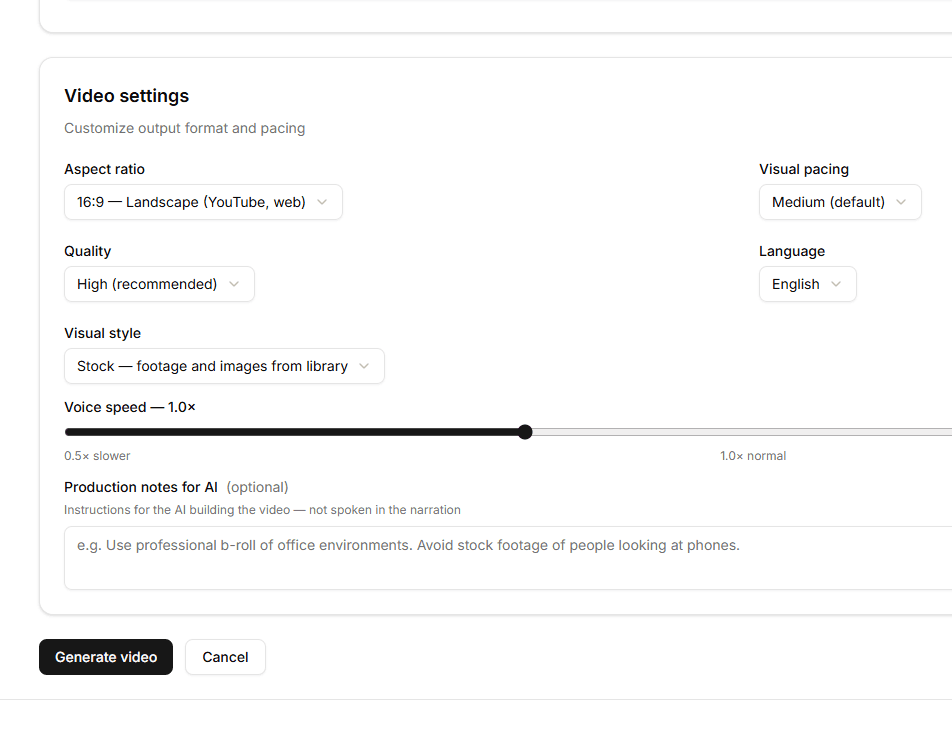
Pick a narrator from the VideoGen voice library, generate in the language your audience speaks and set voice speed anywhere from 0.5× to 2.0× to match the delivery you want.
Format and visual style
Choose 16:9 for YouTube and the web, 9:16 for short-form or 1:1 square. Set visual pacing and quality, pick stock footage, AI images or entity visuals, and add production notes that guide the visuals without being read aloud.

Generate, preview and download
Hit generate and follow each video from Pending to Processing to Completed in your Videos list. Open a finished video to preview it or download the MP4 for YouTube, your website or social channels.
From content piece to finished video
01
Choose a script source
Pull a blog post, listicle or guide you already created in XLR8 AI, or write a custom script. For a video of about five minutes, aim for 700 to 800 words.
02
Edit for video
Give the video a title and shape the script so it reads naturally out loud. What is in the script is what gets narrated.
03
Set voice and format
Pick a voice, language and voice speed, then choose the aspect ratio, visual pacing, quality and visual style.
04
Add production notes
Optionally tell the video builder which visuals to use or avoid. Production notes guide the footage and are never spoken.
05
Generate and publish
Generate the video, track its status until it completes, then preview it and download the MP4 for YouTube, your site or social channels.
Eight settings on every video
Script source
An existing content piece from XLR8 AI or a custom script you write.
Voice
A narrator chosen from the VideoGen voice library.
Language
The language your audience searches and watches in.
Voice speed
Narration pace from 0.5× to 2.0×.
Aspect ratio
16:9 landscape, 9:16 portrait or 1:1 square.
Visual pacing
Slow, medium or fast, to match how dense the content is.
Visual style
Stock footage and images, AI images or entity visuals.
Quality
Low, standard or high, with high as the default.

Vicky Liu
Founding Marketer, Juicebox
What is XLR8 AI Video?
XLR8 AI Video turns scripts and existing content into explainer videos. It is part of the proprietary AI software inside XLR8 AI, a generative engine optimization (GEO) solution that combines dedicated GEO strategists, proprietary AI software and hands-on execution. GEO means improving how often and how accurately AI answer engines name and cite a brand. Video lets your team produce video versions of the topics you already target, without leaving the platform or learning video editing.
Why does video matter for AI search visibility?
AI search does not only pull from text. YouTube is one of the most-cited sources across ChatGPT, Perplexity and Gemini for how-to and comparison queries, the same kinds of queries your visibility experiments track. Publishing video on those topics gives AI answer engines another place to find and cite your brand, alongside your written content.
Where does the video script come from?
You can pull any blog post, listicle or guide you have already generated in XLR8 AI as the script source, or write a custom script. Either way, you edit the script before generating, so you control exactly what gets spoken. For a video of roughly five minutes, aim for 700 to 800 words.
What can I customize before generating a video?
You choose the voice, the language and a voice speed between 0.5× and 2.0×. You also set the aspect ratio (16:9 for YouTube and the web, 9:16 for short-form or 1:1 square), visual pacing, quality and visual style, including stock footage and images, AI images or entity visuals. Optional production notes tell the video builder which visuals to use or avoid without being read aloud.
What happens after I click Generate?
The job appears in your Videos list with live status updates, from Pending to Processing to Completed. When it is done, open the video’s detail page to preview it or download the MP4 and publish it to YouTube, your website or social channels.
Do I need video editing skills?
No. XLR8 AI handles narration, visuals and assembly from your script and settings. Your team reviews the script and settings up front, and the finished explainer video is ready to publish, usually within minutes.